Free conference room scheduling software for client and visitor meetings

A client meeting or audit is the wrong time to discover your conference room is double-booked. With Picktime, set each room’s availability, list its seating, equipment, and refreshments, and let visitors reserve an available time through your online booking page. The Picktime Rooms Display App shows live room status on a tablet outside the door, so everyone can see whether the room is available, a meeting is about to start, or it’s already in use.

  • Free forever plan
  • No account needed to book
  • No card required
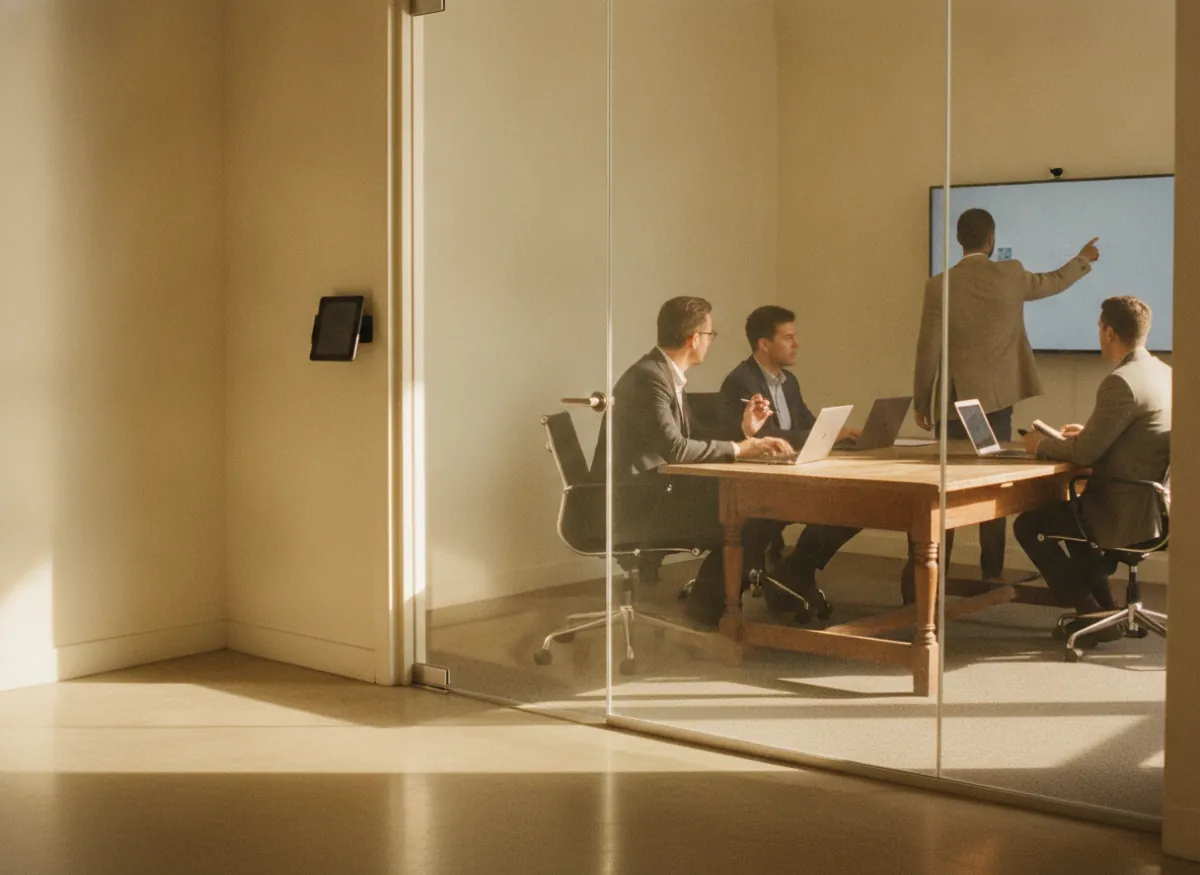
A board meeting under way in the conference room, the video bar lit under the screen and the door ajar

Blu OfficesBook online

Conference roomHalf day · Video bar$180.00

Board room2h · Needs approvalInternal

Meeting room 21h · 8 seatsBook

Next free9:00 AM11:30 AM2:00 PM

Board room

Pending

Not a booking until somebody says yes

Paid at booking

$180.00

When somebody outside takes it

Room and video bar

One booking

Or the slot is not offered

How it works for you

Built for conference rooms where every meeting matters

A quick team discussion might work in any available space. A client presentation, board meeting, or regulatory review needs the right room, the right equipment, and a confirmed reservation. Picktime’s meeting room scheduling software helps you manage the room, equipment, and reservations together, so your team knows what’s available before the meeting begins.

Reserve the room and the equipment together

For service-based bookings, link the conference room with required equipment, such as a video bar, microphone, or presentation clicker. Picktime checks the availability of linked resources before offering a time slot, so the room isn’t booked for a meeting when the equipment it needs is unavailable. Manage multiple rooms and their schedules through Picktime’s resource management feature.

Conference room A, its video bar and its microphone checked together for Thursday at 10:00 on the Blu Offices booking page, all available, so the time is offered

The people dialling in get a link off the same booking

A joining link is made when the room is booked, so the four in the room and the three on the screen are working from one invitation rather than a room booking and a separate meeting nobody sent.

Thursday’s 10:00 board review with conference room A held for the four in the room and a Jitsi Meet joining link generated for the three on the screen, both on one invitation

See every room booking in one online calendar

Keep conference room reservations organized in Picktime’s online calendar. See which rooms are booked, check upcoming meetings, and review reservation details without switching between separate schedules. If a meeting time changes, your team can update the booking directly in the calendar.

Thursday in the Blu Offices online calendar: the 10:00 board review in conference room A, the 14:00 board room request, and conference room B free, with the 10:00 meeting time updated directly in the calendar

Let employees and visitors book an available room

Create an online booking page where employees and external visitors can view available conference rooms, choose a suitable time, and make a reservation. Share the booking link with your team or visiting clients so they can book without contacting reception or an office administrator.

The Blu Offices booking page as a visiting client sees it: conference room A, meeting room 2 and the board room, with an available time chosen and the reservation made without contacting reception

Keep meeting schedules connected with calendar sync

Connect team members’ Google, Outlook, iCloud, or other supported calendars with Picktime’s two-way calendar sync. Their existing commitments and Picktime appointments stay aligned, helping avoid scheduling conflicts for meeting participants while room availability is managed through its resource schedule.

D. Okafor’s Outlook commitments and Picktime appointments aligned through two-way calendar sync, while conference room A’s availability follows its own resource schedule

Review meeting room requests before confirming

Some meeting requests need approval before they go ahead. With Picktime’s Approve Bookings feature, your team can review incoming requests and approve or decline them before confirming the reservation. This gives your office team time to review reservations that need extra coordination, such as board meetings or regulatory visits.

A request for the board room on Thursday at 14:00, with who wants it and what for, pending until the office team approves it, then confirmed

Show room availability right outside the door

Install the Picktime Rooms Display App on a tablet outside your conference room. Green shows the room is available, yellow means a meeting is approaching, and red indicates it’s occupied. The display also shows upcoming bookings, so employees and visitors can check the room’s status without interrupting a meeting.

The tablet outside conference room A showing it busy until 10:30 in red, with the 11:00 board review next, and the one outside conference room B showing it available in green

Let external visitors book without an account

Not everyone who needs to book your room is part of your team. Clients, auditors, candidates, and supplier representatives may only need to visit once, so asking them to create an account or download an app adds unnecessary friction.

With Picktime’s conference room booking software, you can share an online booking page link with employees and external visitors. Visitors can choose an available time, enter their contact details, and make a reservation or submit a booking request without logging in, depending on your approval settings. Add custom intake fields to collect the information your team needs, such as their company, meeting purpose, host, or arrival instructions.

Unlike an internal room calendar tied to staff mailboxes, Picktime keeps external bookings, visitor details, and requirements in one place, without the email back-and-forth.

A client with no account booked into conference room A on Thursday, Nov 19 from a link, entering a name and contact details, with custom intake fields for the company, meeting purpose and arrival instructions answered
When your conference room is rented out

Turn available conference room hours into paid bookings

Your conference room can also accommodate outside groups, from training providers running workshops to professional associations holding annual meetings or suppliers hosting product demonstrations. With Picktime, create hourly, half-day, or full-day rental services, each with its own duration and price. Link these services to your conference room so organizers can book time slots based on the room’s actual availability.

An organizer opens your booking page, selects a rental option, chooses an available time, and enters their event details. Use Intake Forms to ask about attendee numbers, equipment needs, or room setup. Collect a deposit or the full rental fee through Stripe, PayPal, or Square when they book.

Your team can then review the reservation, event requirements, and payment status in Picktime before preparing the room. No separate payment requests or lengthy email exchanges are needed to arrange a straightforward rental.

The conference room rented to an association for its annual meeting on Saturday, Nov 14: the full-day rental chosen on the booking page with a $90.00 deposit, the payment status shown to the team, and the Saturday in the room’s week alongside a paid Wednesday training workshop
Thursday, 8:52 AM

Two directors, one client, and a conference room that’s still occupied

It’s eight minutes before a client meeting. The client is at reception, the directors are ready, and four employees are still wrapping up a discussion in the conference room. One calendar shows the room as available, another says it’s booked, and nobody knows for sure without opening the door.

By 9:15 AM, the client is finally seated, but the video equipment is still being set up. A meeting that should have started on time begins with apologies and unnecessary delays.

Picktime’s room scheduling software lets your team manage conference room reservations in one online calendar and check the availability of rooms and equipment linked to service-based bookings. The Rooms Display App shows the room’s current status and upcoming reservations on a tablet outside the door. Everyone can see when the room is occupied and when it’s available, without interrupting the meeting inside.

Getting started

Get your conference room ready to book before the next board meeting

Conference room A added as a resource with its twelve seats and available hours, and the video bar and wireless microphone linked to the meeting service
01

Add your conference room and equipment

Add your conference room as a resource in Picktime, set its available hours, and include details such as seating capacity and equipment. For meetings that require a video bar, wireless microphone, or other equipment, link the required resources to the meeting service. Picktime checks their availability together, helping prevent booking conflicts.

Conference room A set to be bookable up to fourteen days ahead with a meeting duration of four hours, and booking approvals switched on so a request waits to be approved or declined
02

Set meeting durations and booking rules

Set up bookable meeting services with the durations your team needs, and decide how far in advance reservations can be made. If incoming bookings need review, enable booking approvals so your team can approve or decline requests. This gives you more control over how conference room reservations are handled.

The booking link shared through the company intranet, email and directly with a visiting client, the Rooms Display App on the door tablet, and conference room A booked from a visitor email
03

Share your booking link and display room availability

Enable online booking and share your conference room’s booking link through your company intranet, email, or directly with visiting clients. Install the Picktime Rooms Display App on a tablet outside the door to show whether the room is available, reserved for an upcoming meeting, or currently occupied.

More than one office

Manage every conference room across your offices from one place

When your organization has conference rooms across multiple buildings or offices, each location needs its own room availability, equipment, and booking schedule. With Picktime’s conference room booking system, you can add locations, assign rooms and resources, and manage reservations across all your offices from one dashboard.

Visitors can select the office they need, whether it’s London or another location, and book an available conference room through your online booking page. Your team can check room schedules and upcoming reservations across locations without switching between accounts or maintaining separate spreadsheets.

Thursday’s calendar in day view with both offices on one screen, London open 08:00 to 18:00 and Manchester 09:00 to 17:30, and the 10:00 board review in London’s conference room shown as booked
What it costs

Start free. Pay when there are more rooms and more offices.

The free plan is a plan, not a trial. There is no date at which it stops, no card to add, and nothing that quietly turns off in a fortnight.

Free, and it stays free

What one office gets without paying

  • Your own room booking page, no account needed to use it
  • The room and the kit in it held as one booking
  • A joining link generated with the booking
  • Email notifications on every booking

Start free

Works with what you use

Keep conference room bookings connected to your calendars and meeting tools

Keep calendars and video meetings connected

Picktime’s conference room scheduling software supports two-way calendar sync with Outlook, Google Calendar, and other supported calendars, helping your team keep meeting schedules aligned with existing commitments. For services set up as online meetings, Picktime can automatically generate Microsoft Teams, Zoom, or Google Meet joining links, so remote participants have the details they need.

Manage Bookings with a Conference Room Scheduling App

Check room availability, review upcoming meetings, and manage last-minute schedule changes without returning to your desk. Picktime works in your mobile browser and offers dedicated iOS and Android apps, so reception and office teams can stay on top of conference room reservations while moving between meeting rooms or welcoming visitors.

Questions

Conference room scheduling: common questions

Is there a free app for booking conference rooms?

Yes. Picktime offers iOS and Android mobile apps and lets you book conference rooms on its free plan. The free plan includes three resources and an online booking page. Add your rooms, set their available hours, and share a link with employees or visitors. For current plan details, see Picktime pricing.

Does Picktime work with Microsoft 365 and Outlook calendars?

Yes. Picktime supports Microsoft 365 and Outlook calendar sync. The Free plan offers one-way sync, while Starter and Pro include two-way sync. These connections help keep team members’ commitments aligned while room availability follows Picktime’s resource schedule.

How do conference room booking approvals work?

With Picktime’s Approve Bookings feature on Pro, you can review incoming requests and approve or decline them. This helps when board meetings or visits need an extra check. Bookings paid for through the online Booking Page are confirmed automatically.

Can I reserve conference room equipment along with the room?

Yes, Picktime lets you manage conference rooms and equipment, such as video bars, microphones, and projectors, as resources. You can link the required resources to a meeting service and manage their availability through Picktime. This helps your team organize the room and the equipment needed for a meeting.

Do external visitors need a Picktime account to reserve a room?

No. External visitors can book through your Picktime Booking Page without creating an account. Share the link so they can select a time and enter their contact details. On Starter and Pro, Intake Forms also let you collect meeting-specific information.

Can I charge outside organizations to use my conference room?

Yes, Picktime lets you rent out conference rooms through online bookings. Set rental durations and prices, allow organizers to choose available time slots, and collect a deposit or full payment. You can accept PayPal payments on the free plan, with Stripe and Square also available on the starter and pro.

Can I manage conference rooms across multiple office locations?

Yes, Picktime’s Multiple Locations feature lets you manage conference rooms across different offices from one account. Assign rooms to their respective locations, set their availability, and track reservations in one calendar. Visitors can select their preferred office when booking online. The Free and Starter plans include two locations, while Pro supports unlimited locations.

Can I display conference room availability outside the door?

Yes, the Picktime Rooms Display app shows live room availability on a tablet mounted outside your conference room. Green means the room is available, yellow indicates an upcoming meeting, and red shows that it’s occupied. The display also shows upcoming reservations, helping employees and visitors check room status without interrupting ongoing meetings.


Nobody should have to open the door to find out

Free forever for a single office. No card, no trial clock, and the conference room can be bookable this afternoon.