Key Takeaways
- Open hours don’t always equal bookable hours, as staff schedules, service times, resources, and other rules can limit available slots.
- Check what is blocking each gap before extending business hours or assuming there is a problem with your booking system.
- Keep staff schedules, service timing, calendar commitments, and other availability rules aligned with the hours you want customers to book.
- Picktime’s online staff scheduling helps bring these moving parts together, so your booking page reflects the time your team can actually deliver.
Running a small business means you must have this thought while looking at your schedule: “We are open, so where did all the appointment slots go?”
After all, your business might be open at 9 AM, but the booking page shows no appointments at 9 AM. Confusing? Absolutely. The reason is simple, and you might not have noticed it: open hours and bookable hours are not the same thing.
Your business may be open, but staff availability, breaks, service duration, room usage, and sync calendar can all turn an open hour into an unavailable slot. That’s where online staff scheduling becomes important. When you mix both open and bookable hours, it can only make your calendar look full. The reality?
✅ Open hours don’t guarantee a bookable slot.
✅ Short gaps may not fit the service duration.
✅ Your synced calendar may block off time you thought was free.
In this guide, we’ll explain the difference between open and bookable hours and how to fix those gaps. Let’s look at what’s happening!
Table of Contents
Open Hours vs. Bookable Hours: A Common Online Staff Scheduling Gap
👉Open hours are the hours when your business welcomes your customers. For example, a salon might be open from 9 AM to 6 PM, from Monday to Saturday.
👉Bookable hours are more specific. They show the times when a customer can actually schedule a particular service with an available employee.
Think of open hours as the outer boundary. Your staff schedules, appointments, service length, breaks, and other rules create the bookable hours inside that boundary. Open hours are your business’s working window, and bookable hours are the actual slots you can offer customers. For example, your clinic may stay open until 6 PM. However, a staff member may finish at 4 PM. Customers cannot book that person after 4 PM, even though the clinic remains open.
This is where things get a little tricky. Even when you’re open, your calendar can lose bookable time because:
- A 60-minute service cannot fit into a remaining 30-minute gap.
- Staff breaks can make an otherwise open slot unavailable.
- Meetings or training can make an open period unavailable for bookings.
- When a connected calendar marks the employee as busy.
- A required room or resource is already being used.
When Clients Can’t Book “Open” Time: The Hidden Rules Shrinking Your Availability
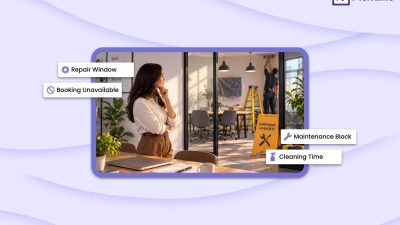
What looks like free time on your calendar may not be bookable at all. There’s usually a hidden rule behind that missing slot. Staff schedules, existing bookings, service duration, breaks, resources, and calendar commitments can quietly shrink the time customers actually see as available. Some of them are
- Picktime also lets businesses require customers to book appointments in advance. If you set a minimum notice period, near-term slots that might otherwise fit the schedule will not be available for customers to book. For example, a two-hour notice rule means customers must book at least two hours before their appointment. So, if it’s 10 AM, a 10:30 AM or 11 AM slot may look free on your calendar but won’t be available for customers to book.
- Buffer time can also shrink availability. A 60-minute service might need extra time before or after it, so that slot can require more than an hour on your calendar.
- With supported two-way calendar sync enabled, busy events from a connected Google, Outlook, Microsoft 365, Exchange, or Apple/iCloud calendar can block those times from appearing as bookable in Picktime.
- A customer may see open business hours, but the selected employee might not offer that service during those hours. Thus, service and staff rules matter as well.
- A free staff member doesn’t always mean a booking is possible. If the required room or equipment is already in use, customers can’t book that time.
The key is to check these factors first before assuming something is wrong with your booking system.
Fix the Gaps Between Open Hours and Bookable Hours
Once you know where availability disappears, fix the specific rule causing the gap. With online staff scheduling, the goal is to make your real team availability bookable. It’s not just about adding more business hours and hoping more appointments follow.
1. Match staff availability with business hours.
Your business hours show when the business is open, but each employee may have different working hours. You need to check whether the right employees work during the hours you want to offer. It’s not practical to expect a morning-only employee to support an evening booking also, just because the business is still open. Moreover, if your team has rotating shifts, review the schedule regularly. Business owners should show customers only the times when their team is actually working.
💡Tip: Picktime’s staff scheduling app lets businesses set working hours for individual team members. You can give employees different working days, start times, end times, and breaks instead of forcing everyone into one schedule.
2. Check service duration and buffer time.
Before adding more appointments to your schedule, check that each service has enough time in the calendar to be completed properly. Just like a 45-minute opening cannot fit a 60-minute appointment. When you add padding between appointments, it can reduce how many bookings fit into your schedule. Further, keep buffers realistic for each service. They should give staff enough time to prepare, reset, or finish notes without unnecessarily removing useful booking time.
💡Tip: With Picktime, businesses can set the service duration and padding time. Picktime uses these settings when calculating available appointment slots, so customers only see times that can fit the service.
3. Check the booking-page slot duration.
Sometimes your staff may be free, but that time may still not be visible as a booking option. This may happen because your booking page is set to offer appointments at certain intervals. The fact is, slot duration controls appointments and determines which times customers can select. For example, with 30-minute slots, customers may see 9:00, 9:30, and 10:00, but not 9:15. They won’t see 9:15 because the schedule only offers start times every 30 minutes. So even if your staff has time available, that particular start time may never appear.
💡 Tip: Businesses can check the Slot Duration setting in Picktime’s Online Booking settings. As a result, you can choose an interval that fits the way your services are normally booked.
4. Remove hidden blockers from available time
Picktime also lets businesses add time blockers for periods that should not be bookable. Use them for meetings, training, administrative work, personal commitments, or any other time when a team member is unavailable, so customers cannot book those blocked periods from the booking page. Otherwise, your booking page may offer time that your employee cannot actually use. Further, with connected calendars, you can avoid bookings during times you are already busy.
💡 Tip: Businesses can connect each team member’s calendar to Picktime. It supports two-way sync with Google, Outlook, Microsoft 365, Exchange, and Apple/iCloud, so busy events can be taken into account when showing available booking times.
5. Check resources, locations, and booking rules.
Check the resource’s own availability as well. In Picktime, Resource Available Times controls its regular weekly availability, while Resource Schedule can be used for date-specific changes. A room or piece of equipment that is unavailable during a particular period can prevent the related booking from being offered. Moreover, multiple locations can create the same problem. An employee might work at one branch in the morning and another in the afternoon, so their availability needs to reflect both locations. Otherwise, customers could see a slot as available even though the employee is working somewhere else. Also check your booking restrictions. Picktime’s Users Can Book Into Future setting limits how far ahead customers can book, while the booking window starts at & ends Can restrict online bookings to a specific date range. Dates outside either configured range will not be available for customers to book.
💡 Tip: Picktime’s online staff scheduling lets businesses manage rooms and equipment as resources and connect them with relevant services. For multi-location teams, make sure the relevant team members and services are assigned to the correct location so customers see booking options for the appropriate branch.
Fix Staff Scheduling in Picktime: Turn Open Hours Into Bookable Slots
For business owners, every bookable slot matters. Picktime works from the idea that business hours alone do not create appointment availability. The employee, service, schedule, and required resources all need to line up. As we’ve already covered a few Picktime fixes, here are some more worth knowing about:
- The Team Members Roster gives managers a weekly view of employee schedules, making changes easier to look up.
- Update a specific roster period when an employee temporarily changes hours without changing their regular schedule.
- Make individual schedule updates without having to rebuild the entire team calendar.
This makes online staff scheduling easier to manage and helps keep your bookable hours accurate as things change.
The Bottom Line
Your business hours will tell customers when you are open, whereas bookable hours tell them when they can actually book. You should consider the thin line between these two; it can have a big impact on your schedule. Being open doesn’t mean every minute is up for grabs.
So the trick is to stop looking at “open” and “bookable” as the same thing. Picktime’s online staff scheduling helps you bridge that gap by turning your team’s real availability into bookable time.
Are you ready to close the gap between being open and being bookable? Try Picktime Today and see how it keeps your availability on track.
FAQs
1. Why does my calendar show open time but clients can’t book it?
Open hours only show when your business is operating. Bookable hours depend on staff availability, service duration, buffers, resources, calendar events, and booking rules. In Picktime, these factors work together to determine which time slots customers can actually book.
2. How do I fix missing appointment slots without adding more staff?
Check your staff schedules, service duration, buffer, blocked periods, connected calendars, and resource availability. Picktime can help you review these scheduling details and adjust the rule causing the gap instead of simply extending business hours.
3. Can Picktime help me find out why a time slot isn’t bookable?
Yes. Picktime uses team-member schedules, service settings, padding time, and connected calendar availability when determining bookable slots. Reviewing these settings can help you identify what is limiting a particular time.
4. How often should I review my open and bookable hours?
Review them whenever you add services, change staff schedules, update locations, or adjust booking rules. A regular check can also help catch availability gaps early. With Picktime, you can update team schedules and review booking availability as your business changes.