Key Takeaways
- Back-to-back bookings can leave your team rushed and cause one delay to affect the next appointment.
- Add buffer time between bookings so staff have time to prepare, reset, or finish tasks.
- Set different gaps for each service and check your team’s working hours to keep booking times realistic.
- Picktime lets you add buffer time to individual services, making it easier to manage your calendar.
What happens when one scheduled appointment runs ten minutes late? When there’s no gap between bookings, a small delay can easily affect the customers booked after it. Moreover, when appointments are scheduled back-to-back, it makes a busy day feel rushed. However, with a calendar scheduling app, your business can now add buffer time between bookings automatically. This gives your team time to clean up, prepare for the next customer, or finish notes before moving on. In this guide, you’ll learn what buffer time means, why it matters, and how small business owners should add it to create a more manageable schedule.
Table of Contents
What Is Buffer Time Between Bookings?
Buffer time is a short gap added around an appointment so your team has room to prepare, reset, travel, or finish follow-up work. With a scheduling tool, you can add extra time before or after a booking to give your team extra time. Before a booking, this could mean setting up equipment, checking customer details, or traveling to the location. Afterward, staff can use the gap to clean up, update records, or get ready for the next customer. For example, U.S. vacation rentals often have an average peak-season turnaround window of around four hours between guest checkout and the next check-in. This shows why businesses need to build realistic gaps into their schedules instead of filling every available minute.
💡 Bonus tip: Picktime lets you set padding time for individual services, so you can create an appropriate gap based on how much extra time each service requires.
Why Add Buffer Time to Your Calendar?
Avoid Back-to-Back Appointments
Your business bookings need some extra time between services. With a scheduling tool, you can add a buffer that will help you avoid bookings from filling every available minute. As a result, your team will get some space between continuous work. Most importantly, it reduces the chance of affecting the next customer due to a delayed appointment.
Give Your Team Time to Reset
Staff may need time between appointments to clean the workspace, arrange resources, complete notes, or move between locations. When gaps are planned accordingly, it will give staff time to handle these tasks without rushing.
Create a Better Customer Experience
With a calendar scheduling app, staff will get enough time between appointments. As a result, customers feel less rushed. They can receive more attention while your team can focus on the next appointment.
How to Add Buffer Time in Picktime
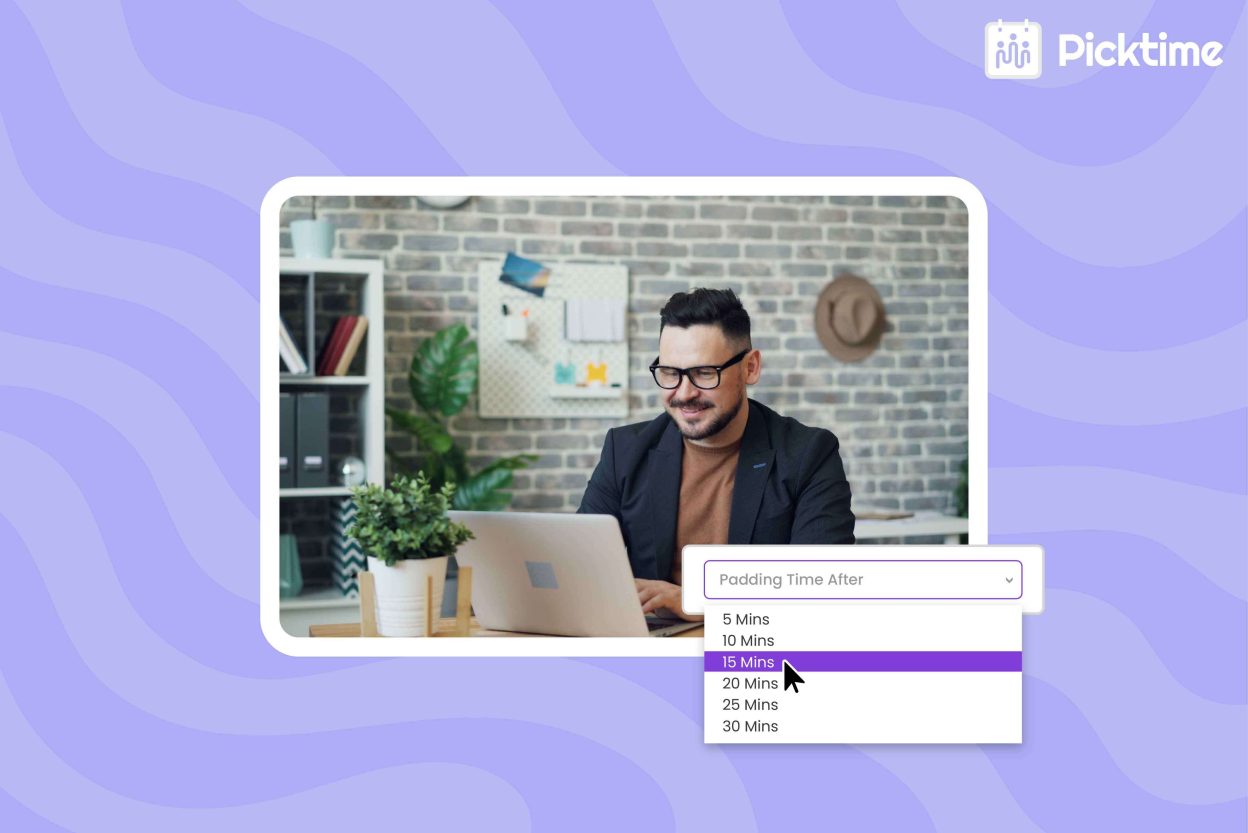
Appointment scheduling software like Picktime refers to buffer time as “padding time” in its service settings. You can add it to individual services from your Picktime dashboard. Here’s how to set it up for a service:
- Log in to your Picktime account and select Booking Types from the left-side menu.
- Open Services and select the service you want to update.
- On the Service Details page, scroll to Padding Time, located below the Price and Duration settings.
- Turn on the Padding Time toggle.
- Choose the amount of padding time you want to add from the dropdown.
- Save your changes.
For example, if a service takes 30 minutes and you add 15 minutes of padding time, Picktime includes that extra time when determining when the next booking can be scheduled.
Common Buffer Time Mistakes to Avoid
Using the Same Time Gap for Every Service
A 10-minute gap may be enough for one service, but another may need more time. Thus, set padding based on what each service actually requires.
Forgetting Team Schedules
Check your staff’s working hours and breaks before adding buffer time. Make sure the gap fits around their schedule and the services they handle. This results in keeping your booking times clear and avoiding promising times when staff aren’t available.
Not Testing the Booking Experience
After changing the settings, test the booking page yourself. Make sure customers can still find useful time slots and that the schedule does not create unnecessary gaps.
Conclusion
A small gap between appointments can give your team time to reset and keep the schedule running smoothly. Moreover, it gives you a little extra room when an appointment takes longer than expected, so the next customer isn’t left waiting. Now that you know how buffer time works, you can start creating more breathing room in your schedule. With Picktime’s calendar scheduling app, you can add padding time to services. So, your team has time to prepare, catch up, and start the next appointment on time.
If your appointments often run back-to-back, take a look at your service durations and add the gap each one needs. Sign up with Picktime and make your booking calendar easier to manage.
FAQs
1. Why should I add buffer time to my booking calendar?
Buffer time gives your team extra time to prepare, clean up, or finish tasks between appointments. Picktime lets you add this extra time to services using padding time.
2. How much buffer time should I add between appointments?
It depends on the service. You might need 10 minutes for one service and 20 minutes for another. Picktime lets you choose the amount of padding time that works for each service.
3. Can buffer time be different for each service?
Yes. Picktime lets you set padding time for individual services, so you can give each appointment the time your team actually needs.
4. Does buffer time improve the customer experience?
Yes. Giving your team time between appointments can help prevent delays and rushed service. Picktime lets you add padding time after a service, giving your team a gap before the next customer can book.