Key Takeaways
- Sharing your entire calendar can expose private appointments and personal commitments.
- Create a separate calendar to share only the events others need to see.
- Control access and permissions so people can view or edit the shared calendar based on what they need.
- For customer bookings, Picktime lets you share available time slots without exposing your personal calendar.
Sharing your calendar is useful when you need to coordinate with family, coworkers, or clients. However, you may not want everyone to see your personal commitments, appointments, or private events on your schedule. In this situation, the easiest solution is to keep your private events on your personal calendar and create a separate calendar for the rest. The best part? On iPhone, you can share a calendar by creating a separate iCloud calendar, choosing who can access it, and controlling what they can do with it. Want to know how to set it up without sharing your whole schedule? This blog will walk you through simple steps on how to share the calendar you need while keeping your personal events private.
Table of Contents
- Create a Separate Calendar for Sharing
- Share Only the Calendar You Want
- How Scheduling Software Helps You Manage Availability
- When to Use a Shared Calendar vs. Scheduling Software
- Conclusion
- FAQs
Create a Separate Calendar for Sharing
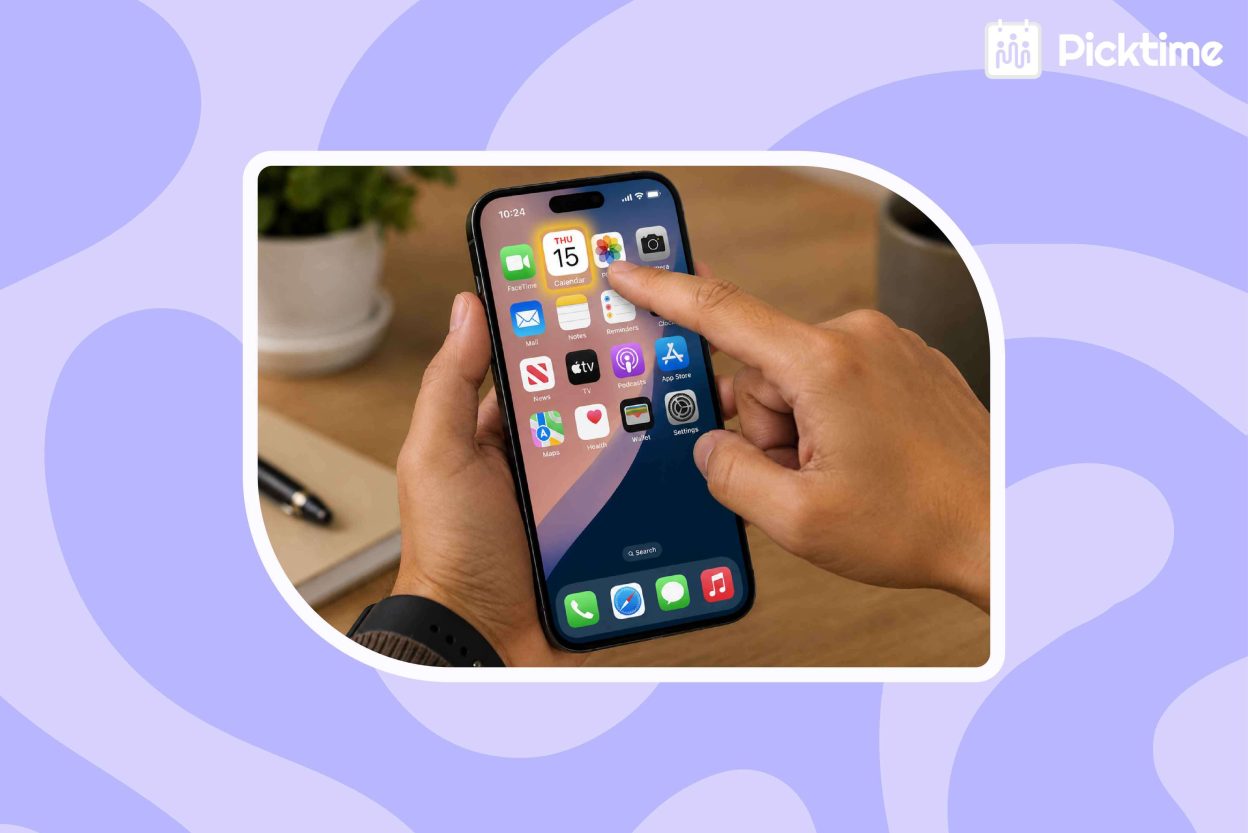
If you need to share a calendar with others, then creating a separate planner is best to protect your privacy. You can share a specific calendar while keeping your other personal calendars private. Apple supports creating separate iCloud calendars and sharing only the calendar you choose. For example, you could create a work, family, or team calendar. As a result, you can keep personal appointments on your private calendar and add only relevant events to the shared one. Mentioned are some simple steps that will help you create a calendar on an iPhone easily:
- Open the Calendar app.
- Tap ‘Calendars’ at the bottom.
- Tap ‘Add Calendar ‘
- Select Add Calendar again. If needed, choose iCloud as the account.
- Enter a name for the calendar.
- Choose a color if you want to identify it easily.
- Tap Done.
- On the Calendars screen, tap the info icon next to the calendar you want to share.
- Tap Add Person and enter their email address.
- Tap Add or Done to finish.
Note: If you need to share the calendar with someone who doesn’t use iCloud, you can create a public, read-only calendar link instead.
That’s it! Your new iCloud calendar is ready to use. You can now add events to this calendar without mixing them with your private schedule.
Privacy Tip: If you need to share the calendar more widely, you can also create a public, read-only link. Just keep in mind that anyone with the link can view the calendar, so use this option only for non-sensitive schedules.
Share Only the Calendar You Want
Once you have a separate calendar, you can share it with specific people without giving them access to your personal calendar. Here’s how to share a calendar:
- Open the ‘Calendar’ app and tap ‘Calendars.’
- Tap the ‘info icon’ next to the calendar you want to share.
- Select ‘Add Person’.
- Enter the person’s email address.
- Tap ‘Add’ or ‘Done’.
The person you invite will only have access to the calendar you shared, not your other private calendars. Moreover, you can control whether they can make changes. To do that, just turn on the ‘Allow Editing’ option. If they need to add or update events. You can also leave it off if they only need to view the schedule.
How Scheduling Software Helps You Manage Availability
A shared calendar works well when everyone needs to stay on the same page about upcoming events. However, it is not always the best option when customers need to book your available time. For example, if you have a personal appointment at 3 PM, customers don’t need to know why you’re unavailable. They only need to see the other time slots that are open for booking.
Scheduling software handles these situations differently. Picktime is appointment scheduling software that lets customers see your availability without giving them access to your personal calendar. Customers can view open time slots and schedule appointments through your online booking page. Meanwhile, your two-way sync with Apple Calendar keeps both schedules updated. Moreover, bookings, rescheduled appointments, and cancellations are automatically updated, so you can avoid double bookings.
When to Use a Shared Calendar vs. Scheduling Software
A shared iPhone calendar is useful when people need to see or manage the same schedule. It works well for families, small teams, and ongoing internal coordination. However, online scheduling software is a better choice when customers need to book appointments themselves. It gives them the flexibility to choose from available hours without the need to access your personal or business calendar. So, if your goal is simply to coordinate with a few people, sharing a separate calendar may be enough. But if you are managing customer appointments, a scheduler tool can handle availability and bookings without exposing your entire schedule.
Conclusion
Now you have learned how to share a calendar on an iPhone without revealing your entire schedule. So, you can keep personal events private and share only what others need to see. For customer appointments, Picktime takes this a step ahead by syncing with Apple Calendar. Moreover, it keeps your availability up to date while customers book through your online booking page. When a booking is created, rescheduled, or canceled, the changes appear on your calendars automatically. Thus, it helps you avoid double bookings and unnecessary scheduling conflicts.
If you want to keep your personal schedule private and your bookings organized. Try Picktime today.
FAQs
1. What can others see on a shared iPhone calendar?
People you share a calendar with can see the events and details included on that specific calendar, depending on the access you give them. To keep personal appointments private, keep them on a separate calendar that you do not share. For customer bookings, Picktime takes a different approach by showing customers your available time slots instead of your private calendar events.
2. Can Picktime help me share my availability instead of my full calendar?
Yes. Picktime lets customers view your available time slots through an online booking page and book appointments directly. With two-way iCloud Calendar sync enabled on Picktime’s Starter or Pro plan, commitments in your connected calendar can be reflected in Picktime availability, helping prevent customers from booking conflicting times
3. How can someone view a shared calendar without editing it?
When sharing an iCloud calendar, you can turn off editing for the person you invite. They can view the shared events and schedule but cannot add, change, or delete events.
4. What is the difference between a shared calendar and a public calendar?
A shared calendar lets you choose specific people and manage their access, while a public calendar uses a link that anyone with the link can access. Public calendars are better for non-sensitive schedules.