Key Takeways:
- Connecting Zoom with appointment scheduling software can automatically create meeting links after each confirmed booking.
- Clients receive the meeting time, joining link, and calendar details without waiting for your team to send them manually.
- Calendar integration helps keep availability accurate and reduces the risk of double bookings.
- Automated confirmations and reminders make it easier for clients to find their meeting details and join on time.
Scheduling a meeting should be the easiest part of your workload. However, many companies still spend valuable time arranging meetings, copying invitations, and sending follow-up emails after every appointment. These tasks may seem small, but they can easily become tiresome when your calendar fills up.
When a meeting link is missing or difficult to find, clients may join late or miss the appointment entirely. Hence, every back-and-forth call and manual step leads to mistakes, especially when team members have different sets of tasks. This is why Zoom scheduling is a great way that allows you and your team members to conduct meetings seamlessly.
However, when you connect appointment scheduling software to Zoom, scheduling virtual meetings becomes much easier. When someone schedules a time slot, Picktime automatically creates the Zoom meeting link and shares it with both the client and the assigned team member. It means your team members don’t have to switch between multiple tools, and your clients receive everything needed without waiting for an email.
Table of Contents
What is Zoom Scheduling with Booking Software?
It’s simple: when you integrate with your Zoom video conferencing tool, it gives an easier way for your team members and clients to join meetings. Once you create your meetings along with a Zoom location, you can simply enable participants to choose their own slot and book anytime, anywhere. Rather than opening Zoom and creating each link individually, everything happens automatically during the booking process. The process is simple:
- Participants choose an available time from the booking page.
- The appointment is confirmed.
- A Zoom meeting is created automatically with the chosen location.
- Each member involved in the meeting receives confirmation emails along with the meeting link.
- Each event is updated on your online calendar with details.
The whole process happens within seconds, so your team member does not have to do things manually. It’s suitable for businesses such as the following:
- Consultants
- Healthcare providers
- Coaches
- Legal firms
- Educational institutions
- Financial advisors
- HR teams
- Customer support departments
What You Need Before Automating Zoom Scheduling
1. Need a Zoom Account
For better meetings, you need an active Zoom account where you can easily sync your appointment schedules. You must make sure the Zoom account is active and connected to the right profile in your scheduling system. Check the settings before accepting a booking request, including meeting duration, waiting room, passcode, and participant access. This way, you can ensure every meeting schedule stays consistent and make sure the right team member gets assigned each time.
2. Appointment Scheduling Software With Zoom Integration
An appointment scheduling tool like Picktime lets you integrate with your existing Zoom account for seamless virtual meetings. When setting up the integration, the Picktime admin is taken to Zoom to sign in and authorize Picktime to connect with the Zoom account. Once Zoom is integrated with Picktime, any client who books an appointment with Zoom as the meeting location will receive the meeting link in their confirmation email. The assigned team member will receive the link as well.
3. A Connected Calendar
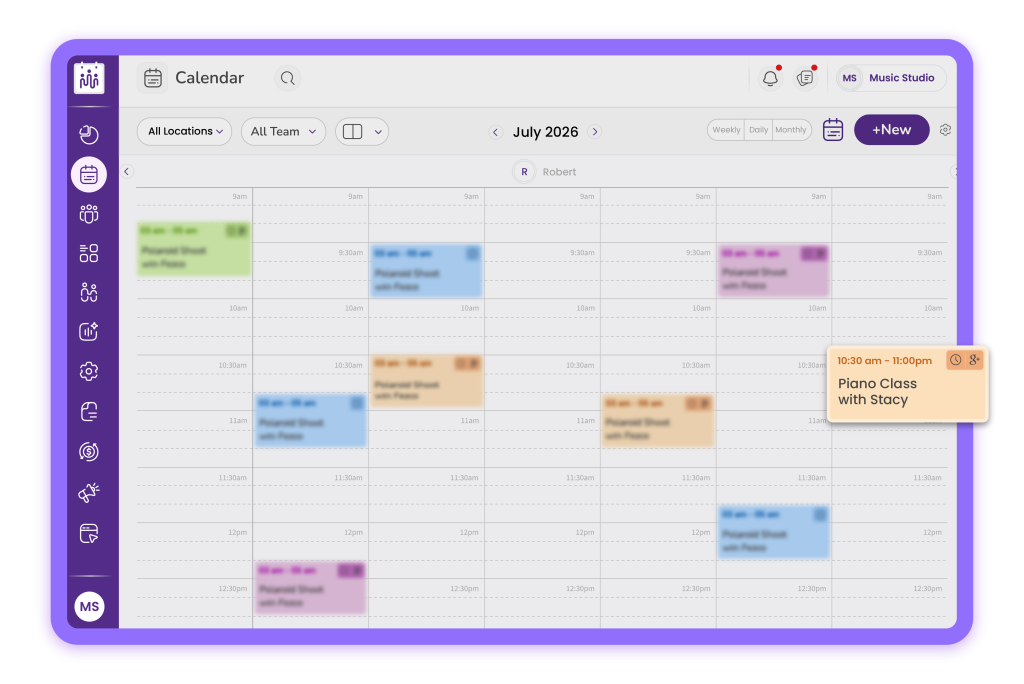
Connecting your work calendar allows the scheduling system to check your existing appointments before showing available times. This helps keep availability accurate and reduces the risk of clients booking a time when you are already busy. Zoom can connect with popular calendar tools like Google Calendar, Microsoft 365, and Outlook, making it easier to keep meetings and schedules in sync. Once you grant the needed permissions, Picktime can easily check your connected calendar for availability and add or update events when needed.
4. Clear Confirmation Emails
Clients should not have to search through their inbox to figure out how to join an appointment. A useful confirmation email should include:
- The appointment date, time, and time zone
- The Zoom meeting link
- The meeting ID or passcode, when required
- A calendar invitation
- Simple joining instructions
- Rescheduling or cancellation details
When these emails are sent automatically after booking, both the client and your team have the same information from the start. Appointment scheduling with Zoom also allows users to personalize email notifications.
5. Automated Appointment Reminders
Even the most well-organized clients may forget their appointment due to busy schedules. With automated email reminders, you can remind them about the meeting time, and they can easily find the Zoom link before the session begins. With Picktime, you can easily personalize email content based on scheduling needs.
6. Team Scheduling Settings
If several employees handle virtual appointments, each booking needs to be assigned to the correct person. Your scheduling platform should consider staff availability and create the meeting under the appropriate host account. Each team member may need to connect their own Zoom account and calendar. Set this up carefully so clients receive the correct meeting link and team members can find every appointment on their schedules.
7. A Professional Booking Page
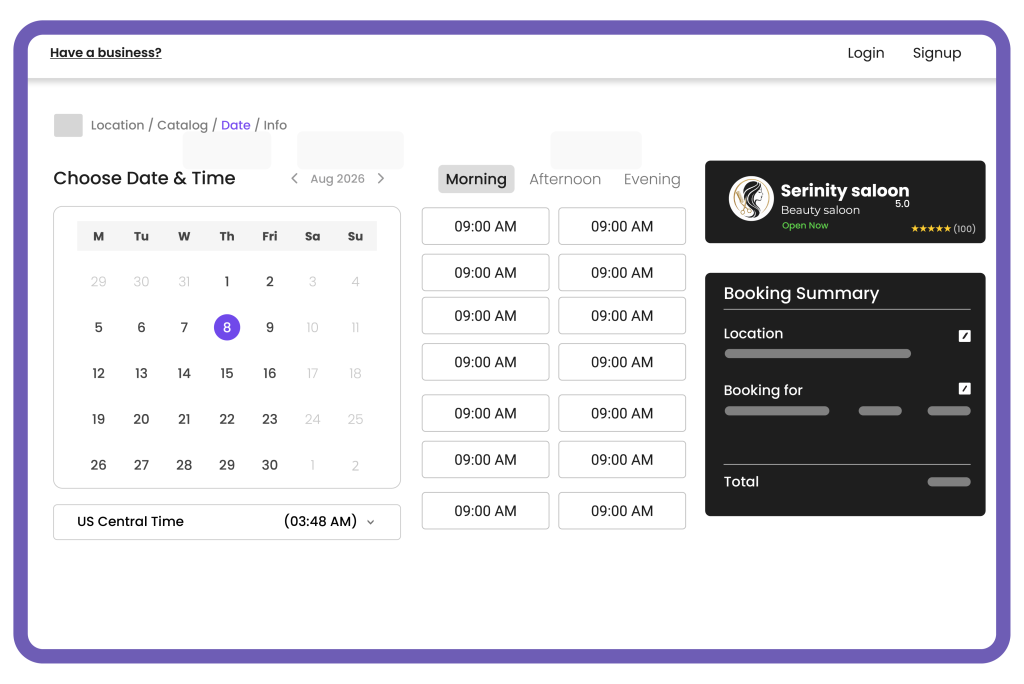
Your booking page is often the first part of the scheduling experience clients see. Keep it simple, clearly display your services and availability, and ask only for the information your team genuinely needs.
Instead of exchanging several emails to find a suitable time, clients can choose an available slot and submit their details in one place. Once the booking is confirmed, the connected system can automatically send the Zoom link and calendar information. This makes scheduling easier for clients while reducing routine administrative work for your team.
Conclusion
If your business is looking for a simpler way to schedule Zoom meetings and send invites, Picktime brings admin tasks to one platform. Picktime’s online scheduling software is especially designed for easy meeting scheduling and allows clients to book meetings online. It can easily connect to different calendars, such as Google Calendar, Apple Calendar, Outlook, and Microsoft 365. After every booking, all appointment scheduling, along with meeting links, automatically appears on both your business and personal calendars. It gives a complete view of your availability across all connected platforms.
No matter how many locations you are managing, Picktime helps you automate your entire scheduling process. It offers seamless integration with different third-party tools to manage customer interaction, payments, and calendars. Picktime’s integration with Zoom scheduling gives you an extra edge over competitors and helps you save ample time.
Start using Picktime today and turn every online booking into a fully scheduled Zoom meeting without lifting a finger.
FAQs
1. What is Zoom scheduling?
Zoom scheduling lets people book online meetings through a system connected to Zoom. When a client selects an available time, the system can create the Zoom meeting, send the joining link, and add the appointment to the connected calendar automatically.
2. Do clients need a Zoom account to book a meeting?
Clients usually do not need a Zoom account to schedule an appointment through your booking page. They can choose an available time and receive the meeting link by email. Whether they need to sign in before joining will depend on the meeting settings selected by the host.
3. Can automated reminders include the Zoom meeting link?
Yes. Many appointment scheduling platforms allow the Zoom link to be added to reminder emails or text messages. This makes it easier for clients to find the correct link shortly before the meeting begins.
4. How does Picktime help automate Zoom scheduling?
Picktime connects your online booking page with Zoom, so a meeting link can be created instantly when a client confirms an appointment. The link is added to the booking confirmation and connected calendar, helping clients and team members find the correct meeting details without sending them manually.