Key Takeaways:
- Sharing your calendar can make scheduling easier, but it may also expose details you want to keep private.
- Use calendar privacy settings to share your availability without revealing unnecessary event details.
- Keep your calendar access limited and review your sharing settings regularly.
- Picktime helps businesses turn their calendar availability into bookable time slots by syncing connected calendars with online booking while keeping private event details hidden.
Sharing your calendar can make scheduling easier, but you may not want to show everyone your entire schedule. Clients and colleagues may only need to know when you are free or busy, not the details of every meeting on your calendar. In this case, you can just share Google Calendar without exposing meeting names, locations, or notes. With Google Calendar, you can control what others can see instead of sharing full event details. In this blog, we’ll explain how to share your availability safely and keep your individual calendar events private.
Table of Contents
Why Share Calendar Availability?
Sharing availability helps others find suitable times without exposing personal appointments or confidential meetings. This is especially useful when you manage client calls, team meetings, or appointments alongside personal commitments. The key is to share only the information that people need. Google’s “See only available/busy (hide details)” permission shows when you are busy but hides event names and details. As a result, you can share your availability with specific people or groups without giving them access to your event details.
How to Share Google Calendar Availability
To share calendar availability without showing your meeting details, start by opening Google Calendar on your desktop. Find the calendar you want to share under My calendars, then click the three-dot menu next to it and select Settings and sharing. From there, find the sharing settings, add the people or group you want to share with, and choose See only available/busy (hide details). This helps people view only when you are free or busy, without seeing event names, locations, or descriptions.
Keep Individual Events Private
Sharing only your availability is a good start, but some events may need extra privacy. Even when your calendar uses free/busy visibility, you can make specific events private if someone has broader access to your calendar. You just need to open the event, click Edit, change the visibility to Private, and save it. Once you’ve set the event to private, you’re all set to keep its details out of view. A private event hides details such as the event title, description, location, and attendees from people who would normally have permission to view those details. Thus, they will see the time as “busy” instead. This can be useful for personal appointments, confidential meetings, or other sensitive events.
Share Availability Through a Booking Page
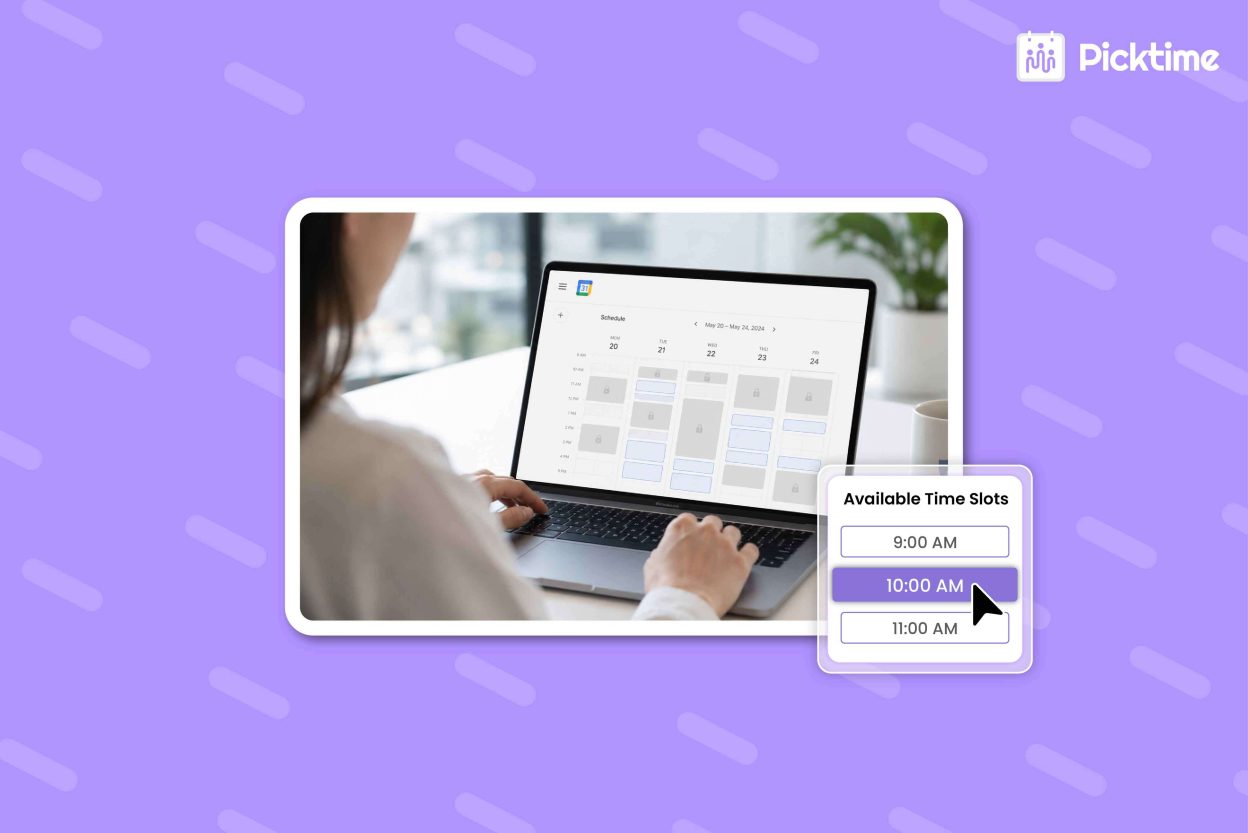
If customers need to book appointments, sharing calendar availability is only part of the process. A scheduling page can turn that availability into bookable time slots, while your calendar continues to hold your existing commitments. Picktime can connect a team member’s Google Calendar with their Picktime schedule to keep availability updated and prevent double bookings. This makes it easier to share Google Calendar availability while keeping bookings organized. With two-way sync enabled, confirmed Picktime bookings can appear in the connected calendar, and existing calendar events can block those time slots in Picktime to help prevent scheduling conflicts. This helps teams keep personal and business schedules together and reduce overlapping bookings. Picktime supports calendar integrations with services such as Google Calendar, Outlook/Microsoft 365, and Apple/iCloud. Team members can connect their calendars to keep availability updated and reduce scheduling conflicts.
Privacy Tips for Sharing Availability
For privacy, avoid making your calendar public unless there’s a specific reason to share it. Google notes that public calendars can appear in search results, so it’s safer to keep personal and business schedules private or limit who can access them. Also, you should review your sharing permissions regularly. If someone no longer needs access to your calendar, remove them and keep sensitive events marked as Private. Moreover, Picktime’s scheduling software keeps synced calendar details private by using only the information needed to manage availability. Event titles, descriptions, and guest details from connected Google, Outlook, or iCloud calendars aren’t imported into Picktime.
Conclusion
Sharing your availability does not mean you have to share everything on your calendar. With a few privacy settings, you can easily hide your personal events while showing your available hours. Once those settings are in place, you can focus on making your available time easy for clients or colleagues to book without adding more work to your day. With Picktime’s online booking page, businesses can let customers choose available time slots based on synced schedules while teams continue managing their calendars in one place. Moreover, your connected calendars can keep your availability up to date while your private meeting details stay hidden.
Ready to share Google Calendar availability without revealing private event details? Try Picktime to keep your schedule connected and easy to book.
FAQs
1. What is the difference between sharing free/busy availability and making an event private?
Sharing free/busy availability controls what someone can see across your calendar. Marking an event as private adds protection to a specific appointment, particularly when another person has broader calendar access.
2. Does Picktime show my Google Calendar event details?
No. Picktime uses the information needed to manage availability. Event titles, descriptions, and guest details from connected calendars are not imported into Picktime.
3. Is it safe to make my Google Calendar public?
Making your calendar public may expose more information than necessary. Google notes that public calendars can appear in search results, so it is generally safer to share your calendar with specific people or use a booking page instead.
4. Can Picktime sync my calendar availability with online bookings?
Yes. Picktime can sync connected calendars with your booking schedule so unavailable times are blocked and customers can book only available slots. This helps businesses reduce scheduling conflicts and manage appointments more efficiently.
5. Does Picktime share my private calendar event details with customers?
No. Customers only see available booking times, not private event details from your connected calendar. Picktime helps businesses share availability while keeping internal calendar information private.