Key Takeaways
- Managing bookings across separate calendars can lead to missed updates and double bookings.
- One-way sync keeps your customer bookings visible in Google Calendar.
- Two-way sync also uses busy calendar events to help keep booking availability updated.
- Picktime connects booking and calendar workflows, helping teams manage appointments and availability in one place.
For small business owners, managing appointments across two calendars can create confusion. A customer may book an appointment through your scheduling software while you already have a meeting or personal event in Google Calendar. Without a connected calendar, your team may end up checking both before confirming an appointment. This results in taking so much time and creating scheduling errors. This is where a booking system with Google Calendar steps in to connect these schedules. But the type of sync you choose also makes a difference. This guide will help you understand the difference between one-way and two-way sync so you can choose the setup that fits your business best.
Table of Contents
One-Way vs. Two-Way Google Calendar Sync
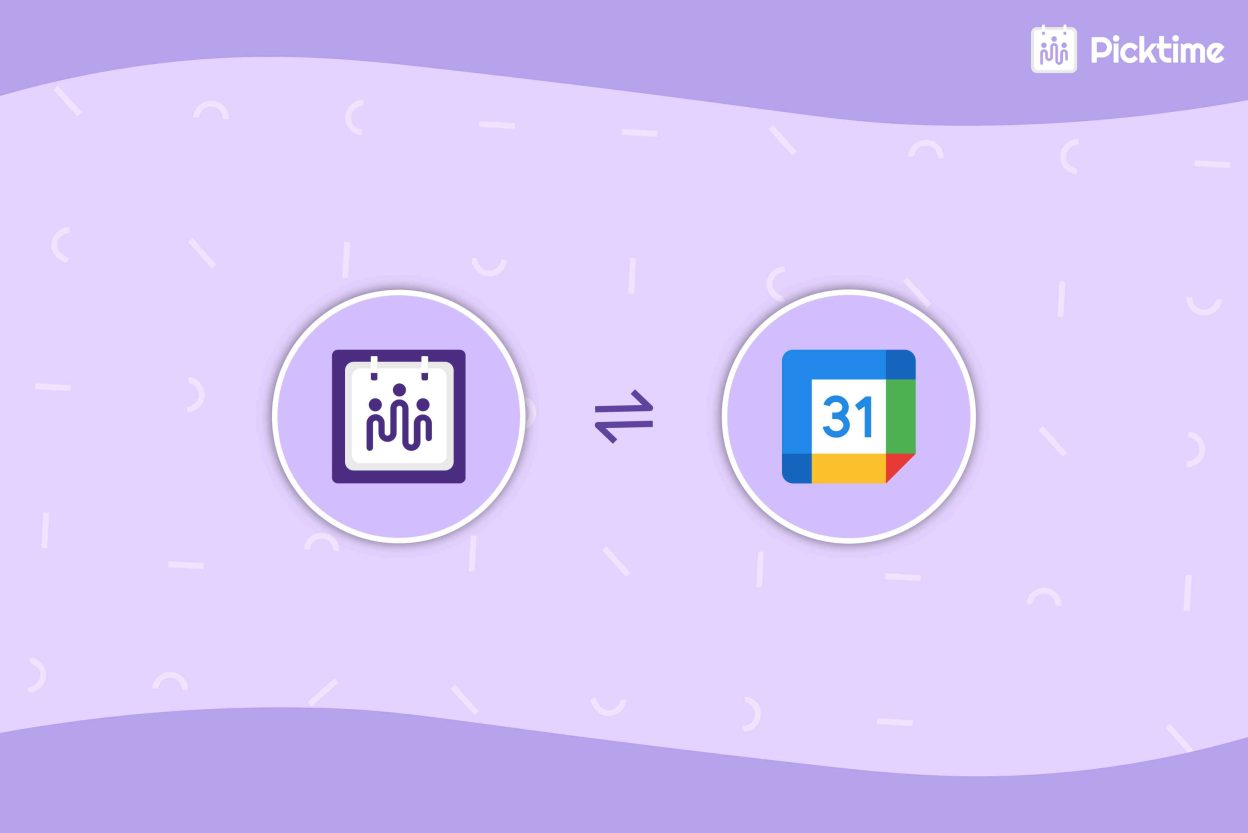
Google Calendar sync connects your booking system with your Google Calendar so appointment information can move between the two platforms. Once you know how each sync option works, it’s easier to see which one fits your business. With the mentioned comparison, you can choose the option that matches how you manage your calendar and availability.
One-Way Sync
One-way sync moves information in a single direction: from your booking system to Google Calendar. For example, when an appointment is confirmed in Picktime, it is added to the connected Google Calendar. As a result, it gives you an easy way to see customer appointments alongside your other events. However, with one-way sync, a meeting or personal event added directly to Google Calendar will not automatically block that time in Picktime.
One-way sync works well when:
- You mainly want to view bookings in Google Calendar
- Your Google Calendar does not control customer availability
- You manage busy times separately
Two-Way Sync
Two-way sync keeps your booking system and Google Calendar updated together. For example, when a client makes a booking, it shows up in Google Calendar. At the same time, if you add a busy event to Google Calendar, that time can also be blocked in your booking system, so customers won’t book it. This makes two-way sync a good choice for a booking system with Google Calendar when personal, team, and customer schedules all affect your availability.
Two-way sync works well when:
- You manage personal and business events in Google Calendar
- Your team needs accurate availability
- When you want Google Calendar events to block your busy time slots
- You want changes in one calendar to update the other automatically
One-Way vs. Two-Way Sync: Which Should You Choose?
The right option depends on how you use Google Calendar for your business. If you only need to see customer bookings in Google Calendar, a one-way sync may be enough. It helps your team see bookings more clearly without changing your available time slots. However, if you also use Google Calendar for meetings, personal plans, or other busy times, two-way sync can help keep those times unavailable for new bookings. A scheduling system with Google Calendar can keep your schedules connected. So you can choose between a one-way or two-way sync option that aligns with how your business manages appointments.
How Picktime Works With Google Calendar
Picktime’s scheduling software connects with Google Calendar through its calendar sync features. Each Picktime team member connects their own Google account and chooses which calendars to sync. Only events from those selected calendars are included in the sync. With one-way sync, customer bookings can appear in Google Calendar, but events added to Google Calendar don’t affect Picktime’s booking availability. However, with two-way sync, Google Calendar events can also be reflected in Picktime, so busy times can become unavailable for customers to book. As a result, you can reduce double bookings, and your team will get more clarity on their schedules.
For example, if a team member adds a personal event or another commitment to Google Calendar, that busy time can be reflected in Picktime’s availability. Picktime also supports Outlook, Microsoft 365, Exchange, and Apple Calendar, so teams can connect the calendars they already use. Google Calendar sync availability depends on your Picktime plan, with one-way sync available on the Free plan and two-way sync on Starter and higher plans.
Conclusion
Choosing between one-way and two-way sync depends on how you want to manage your available time. One-way sync keeps bookings visible in Google Calendar, while two-way sync also uses calendar events to update availability. A booking system with Google Calendar can allow businesses to keep schedules in sync, reduce double bookings, and easily manage appointments. Picktime’s two-way sync brings these benefits into one connected workflow.
Stop checking multiple calendars just to find a time that works. Sign up with Picktime, connect your booking workflow with Google Calendar, and make every appointment easier.
FAQs
1. Which is better: one-way or two-way sync?
It depends on how you manage your schedule. One-way sync is useful if you only want bookings to appear in Google Calendar. Two-way sync is better if Google Calendar events should also affect your booking availability. Picktime supports both options based on your plan.
2. Will two-way sync stop double bookings?
Two-way sync can help reduce double bookings by using busy times from your connected Google Calendar to update your Picktime availability. Calendars that are not connected to Picktime are not included in that synchronization.
3. Do I need to give my booking system full access to my Google Calendar?
The access required depends on the calendar integration and the permissions it requests. When connecting Picktime with Google Calendar, review the permissions shown during setup before approving the connection.
4. Can I switch from one-way to two-way sync later?
Two-way Google Calendar sync is available on Picktime’s Starter and Pro plans. If you currently use one-way sync and want to change your setup, check the Google Calendar sync settings for the relevant team member or contact Picktime. Support for the current switching process