Key Takeaways:
- Turn on Apple Calendar notifications and check how they appear on your iPhone and Mac.
- Choose alert times based on the type of appointment, preparation needed, and travel time.
- Use more than one reminder for important meetings, but avoid adding too many alerts to routine events.
- Remember that Apple Calendar Notifications only remind the calendar user. Clients may still need separate email or SMS reminders.
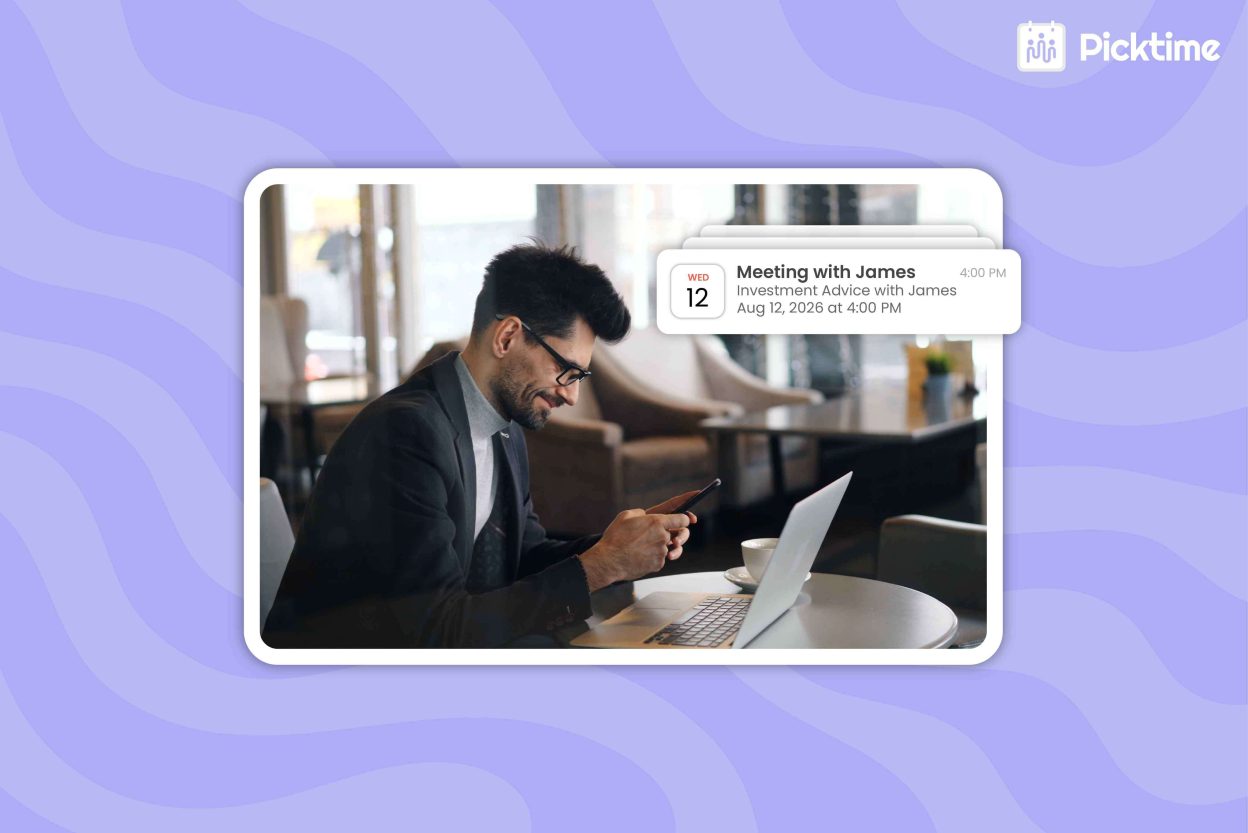
One of the main benefits of using Apple Calendar is that it can easily integrate with iOS features and apps. These features and integrations deliver a seamless experience, which allows users to create appointments from email. You can also use Siri to create notifications and Apple Maps to get directions to your event location. Sending calendar notifications can keep everything organized, but only when alerts are set up carefully.
Moreover, Apple Calendar can keep your schedule updated across different devices, such as iPad, iPhone, and Mac. Its user-friendly interface is easy to navigate, while other integrations reduce missed updates and scheduling confusion. For iPhone users who want an efficient way to handle events, reminders, and daily tasks in one place, Apple Calendar is a trustworthy choice.
In this blog, you will learn how to set up Apple Calendar notifications, manage alerts across multiple devices, and reduce the chances of missing updates.
Simple Ways to Avoid Missed Appointments
1. Check Whether Notifications Are Allowed
When modifying the alerts for individual events, you must ensure Calendar notifications are enabled on your device. On an iPhone, open Settings > Notifications > Calendar. By doing this, you can allow notifications and choose whether they appear as banners, sounds, and lock screen alerts. On a Mac, follow the same settings and steps for better notification management.
Adding an alert to an appointment, but notification settings can prevent it from appearing on your screen. On the other hand, focus modes can also mute automated Calendar reminders. Create a test event and check that the reminder appears on time.
2. Choose Practical Default Alert Times
Default alerts give every new event a basic reminder. Apple Calendar lets you set different defaults for regular events, all-day events, and birthdays. You can also use “Time to Leave” notifications for events with a location. Choose a notification time that matches the type of appointment. An in-person appointment may need an earlier alert to provide enough time to evaluate your notes, gather any materials, and travel to the location without rushing.
3. Add More Than One Alert to Important Events
Notifications alone can not be enough to stay informed and avoid misunderstandings. For events that matter, relying on one notification may not be enough. When an early reminder is sent the day before to review the information, an alert can be sent within 30 minutes. Apple Calendar and Mac offer built-in support for several alerts for most calendars. It will alert you in Calendar, with an email, or open a relevant document automatically.
You should avoid multiple alerts for every appointment, or you may start personalizing them out. Use additional reminders only for appointments that need preparation or for forgetting important documents or missing the meeting can create a real problem.
4. Keep Your Calendars Easy to Read
Apple Calendar notifications are most important when your schedule is easy to understand at a glance. Keep your tasks in separate calendars for client appointments, team meetings, personal events, or different locations. Use simple names and distinct color codes so you can quickly say what each appointment relates to.
Moreover, you must not create a new calendar for every small task. Different categories can make your schedule feel messy and harder to manage. You must keep the setup simple and use a business calendar that you and your team members use to keep your team organized and make growth-driven decisions.
5. Understand the Limit of Personal Calendar Alerts
Apple Calendar can remind the person using the calendar, but a business appointment usually involves someone else. Your customer may not use Apple Calendar, may have notifications turned off, or may never add the event to a calendar.
Your team can therefore be prepared while the client still forgets to attend. As appointment volume grows, manually emailing or texting every customer becomes difficult. That is the point where appointment scheduling software becomes more useful than relying on device alerts alone. A complete reminder process should keep both sides informed. Employees need enough notice to prepare, while customers need clear details about the time, location, service, and options for changing the booking.
Use Apple Calendar Notifications With Picktime
Apple Calendar is an important tool when you set it up around the way you actually work. You should often conduct reviews of your calendar, alerts, settings, and connected accounts. It’s all about making sure they are all aligned with each other. A shared calendar makes it easier to help maintain work-life balance and personal commitments. The more you personalize Apple Calendar to match your workflow, the easier it becomes to manage appointments.
Picktime handles the communication around an appointment, not just the event on one device. That means fewer manual confirmation calls for your staff and clearer communication for your customers. When someone needs to make a change, they can act before the appointment becomes an unused time slot. Apple Calendar Notifications can keep your own day on track. Picktime adds the client reminders and booking controls needed to protect staff time, reduce empty slots, and create a more reliable appointment process.
Ready to spend less time chasing confirmations? Connect your calendar, set your reminder rules, and start managing appointments with Picktime.
FAQs
1. Why are my Apple Calendar alerts not showing?
Your notification permissions may be turned off, or an active Focus mode may be silencing Calendar alerts. Check your device settings and create a test event to confirm that reminders appear correctly.
2. Can I set more than one alert for an Apple Calendar event?
Yes, Apple Calendar on Mac supports multiple alerts for many events. For example, you can set one reminder the day before an appointment and another 30 minutes before it begins.
3. What is the best reminder time for an appointment?
The best reminder time depends on the appointment type. A virtual meeting may only need a short alert, while an in-person consultation may require an earlier reminder for travel, preparation, or for gathering necessary documents.
4. How can Picktime help reduce missed appointments?
Picktime can send automated email and SMS reminders to customers and team members. It also helps manage bookings, cancellations, rescheduling, and availability, so businesses do not have to rely only on personal calendar alerts.