Key Takeaways:
- Adding your Google account to Apple Calendar lets you view and manage Google events from your iPhone, iPad, or Mac.
- Changes made to events stored in Google Calendar can sync between Google Calendar and Apple Calendar.
- Connecting Google to Apple Calendar does not automatically move existing iCloud events into Google Calendar.
- Using one main calendar for new events can help prevent duplicates and scheduling confusion.
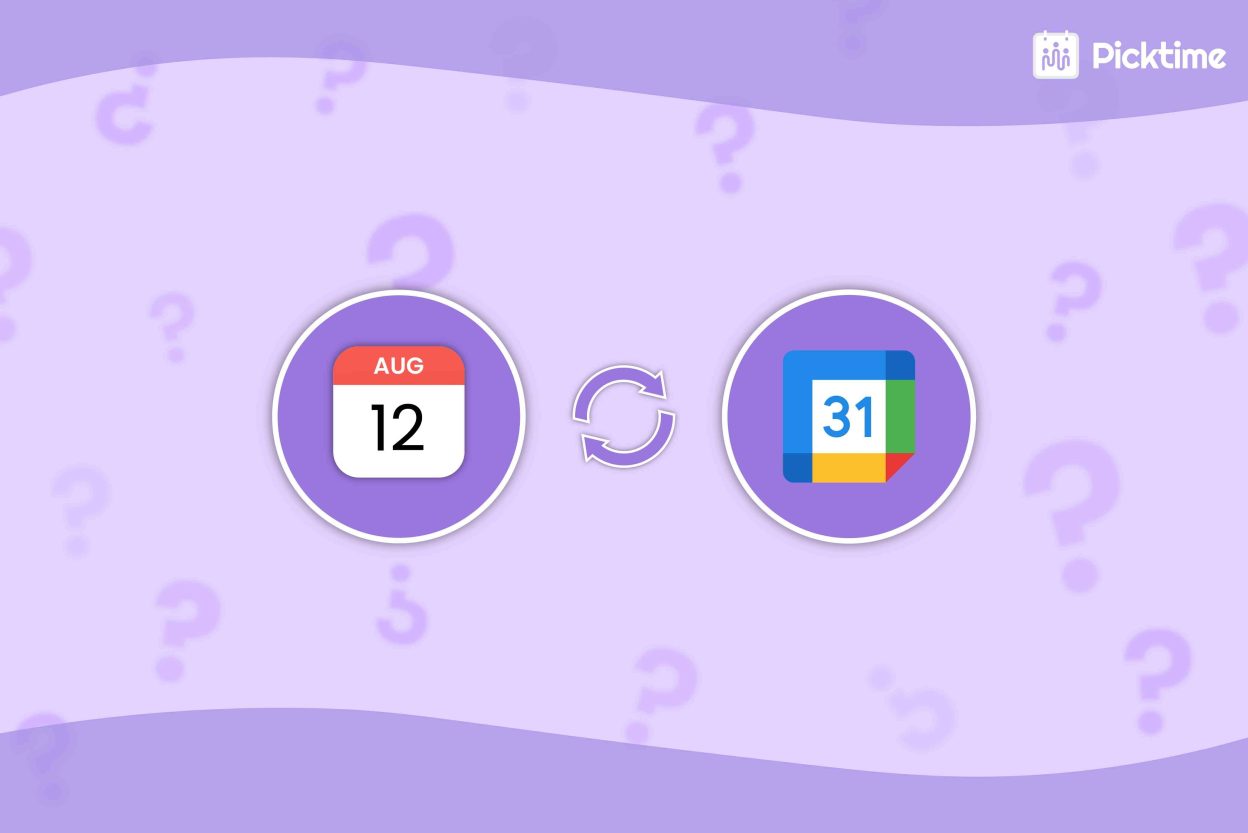
Managing every schedule across different devices doesn’t have to be difficult. Sometimes, people use an iPhone and a Mac for better functionality, but update their work schedules on Google Calendar. Shuffling between several devices can make your schedule difficult to follow and lead you to miss important updates. Whether you are using different calendars, such as Apple Calendar and Google Calendar, connecting them makes sure you never miss any tasks.
It is especially important when you use Apple Calendar for personal commitments and Google Calendar for work. For example, you may be occupied on Friday afternoon for personal work in one calendar, but your Google Calendar still shows the same time as free. A client might book the slot during your appointment before you look into the overlap.
Regardless of the devices, syncing both calendars gives you clear visibility of your entire day. The guide explains clearly how to sync Apple Calendar with Google Calendar on iPhone, iPad, and Mac. This guide explains how to simplify the entire scheduling process, so you can keep track of all schedules in one place.
Table of Contents
Why Syncing Apple Calendar and Google Calendar Helps
Most business owners and their team members use more than one calendar. For example, a team member might send invites via Google Calendar, while you prefer keeping personal schedules in Apple Calendar. If these calendars are not synced, you could miss meetings, double-book appointments, or give clients a poor impression. Here’s what syncing actually fixes:
- Avoid double bookings: If you sync personal and professional calendars, you can view your complete schedule in one place before scheduling a new meeting or appointment.
- Real-time updates across devices: Reschedule an event on your Mac, and the change will appear on your iPhone and other connected devices.
- Fewer scheduling conflicts: Your team can easily access accurate availability rather than working from separate calendars with different information.
- Less time managing calendars: You stop manually entering the same event in two places.
For small business owners, every minute of your day spent updating schedules manually can be costly. It can take your valuable time away from your customers. By syncing your calendars, you can reduce excessive tasks and keep your schedule easier.
How to Sync Apple Calendar with Google Calendar
On iPhone and iPad
Adding your Google account to Apple Calendar is the fastest way to get two-way sync working on your iPhone or iPad. Here’s how:
Step 1: Open the Calendar settings
Open Settings on your iPhone.
Go to: Apps → Calendar → Calendar Accounts
Step 2: Add your Google account
Tap Add Account, and then select Google.
Enter the Gmail or Google Workspace email address connected to your Google Calendar. Complete the sign-in process and any two-step verification requested by Google.
Step 3: Turn on calendar access
After signing in, you may see options for Mail, Contacts, Calendars, and Notes.
Turn on Calendars. You can turn off the other options when you only want to connect your calendar. Apple and Google both document this account-based method for displaying Google Calendar events in the iPhone Calendar app.
Step 4: Check that your Google calendars are visible
Open the Apple Calendar app. Tap Calendars at the bottom of the screen. Look for your Google account and make sure the calendars you want to see have checkmarks beside them. You may see separate Google calendars for:
- Personal events
- Work appointments
- Birthdays
- Holidays
- Shared calendars
- Team or project schedules
Uncheck calendars you do not want displayed. This hides them from the app without deleting their events.
On a Mac
You can add your Google account directly through the Calendar app on your Mac.
Add Google Calendar to Apple Calendar on Mac
- Open the Calendar app on your Mac.
- From the menu bar, select Calendar → Add Account.
- Choose Google, sign in, and complete any verification steps.
- Make sure Calendars is turned on.
Once connected, Google Calendar events will now appear in Apple Calendar. If you cannot see the calendar list, go to View → Show Calendar List.
How to Sync Google Calendar with Apple Calendar
The steps above push Google Calendar events into Apple Calendar. But what if you want to go the other direction and view your Apple Calendar events inside Google Calendar? Here’s how to do a one-way sync from Apple Calendar to Google Calendar:
- Open Apple Calendar on your Mac.
- Find the calendar you want to share and click the Info button next to it.
- Enable Public Calendar and copy the link provided.
- Open Google Calendar in a browser.
- Click the + icon next to “Other calendars” in the left sidebar.
- Select From URL, paste your iCloud calendar link, and click Add Calendar.
Keep in mind: this is a one-way sync. Your Apple Calendar events will show up in Google Calendar, but changes made in Google Calendar won’t sync back to Apple Calendar. For a full two-way sync, the iPhone and Mac method above is what you need.
Sync Multiple Calendars with Picktime
Picktime can connect with the calendar you and your team already use, such as Google Calendar or Apple Calendar. Once connected, it updates your availability in real time, so clients always see the correct available time slots when they book. Here’s what that looks like in practice:
- A client visits your booking page and sees only the times you’re actually free, based on both calendars.
- With Picktime two-way calendar sync, you can connect personal calendars with your business calendar. Therefore, it updates all your personal and professional schedules vice versa without any mistakes.
- They book a slot, and the appointment is instantly added to your Google Calendar and Apple Calendar.
- Automated reminders go out to the client, which cuts down on no-shows.
- If you manage a team or multiple locations, Picktime handles all of it from one dashboard.
Picktime makes it easier to organize appointments without adding another expense. You can accept online bookings, connect your calendar, and send automatic reminders to clients. To learn more about how to sync with your personal calendar, check our guide.
FAQs
1. How do I sync Apple Calendar with Google Calendar on iPhone?
Go to Settings > Apps > Calendar > Calendar Accounts > Add Account, then select Google and sign in. Enable the Calendars toggle. Your Google Calendar events will appear automatically in your Apple Calendar app, and the sync works both ways.
2. Is the sync between Apple Calendar and Google Calendar two-way?
Yes. When you connect your Google account to Apple Calendar on an iPhone or Mac, changes can update in both places. If you add or edit an event in either calendar, the update should appear in the other one.
The iCloud public calendar link works differently. It only lets Google Calendar display your Apple Calendar events, so changes do not sync both ways.
3. Can I use both Apple Calendar and Google Calendar for client bookings?
Yes, both Apple Calendar and Google Calendar can help you keep track of client bookings. With a booking system like Picktime, you can connect either Google Calendar or Apple Calendar at one time. Once connected, two-way sync keeps your appointments updated automatically across Picktime and your selected calendar.