Key Takeaways
- Calendar mismatches can lead to double bookings, incorrect availability, and scheduling confusion.
- Keep internal and customer booking calendars synced so everyone sees accurate availability.
- Use calendar sync and regular availability checks to reduce missed updates and scheduling errors.
- Picktime helps teams manage internal schedules and customer bookings while keeping availability aligned.
Ever faced a situation where your customer booked a time that looked free to them, but actually it was not? Your team already had something scheduled.
I think it’s too confusing: your calendar marks you as busy, but your booking page says you are free. So now the question is, which one should your client follow?
It’s one of those small scheduling errors that may seem minor, but somehow it will end up creating a much bigger headache. However, with the right scheduling calendars set up, both views can stay in sync. So,
- Your team sees the schedule they need.
- Customers see the times they can actually book.
- Fewer scheduling mix-ups
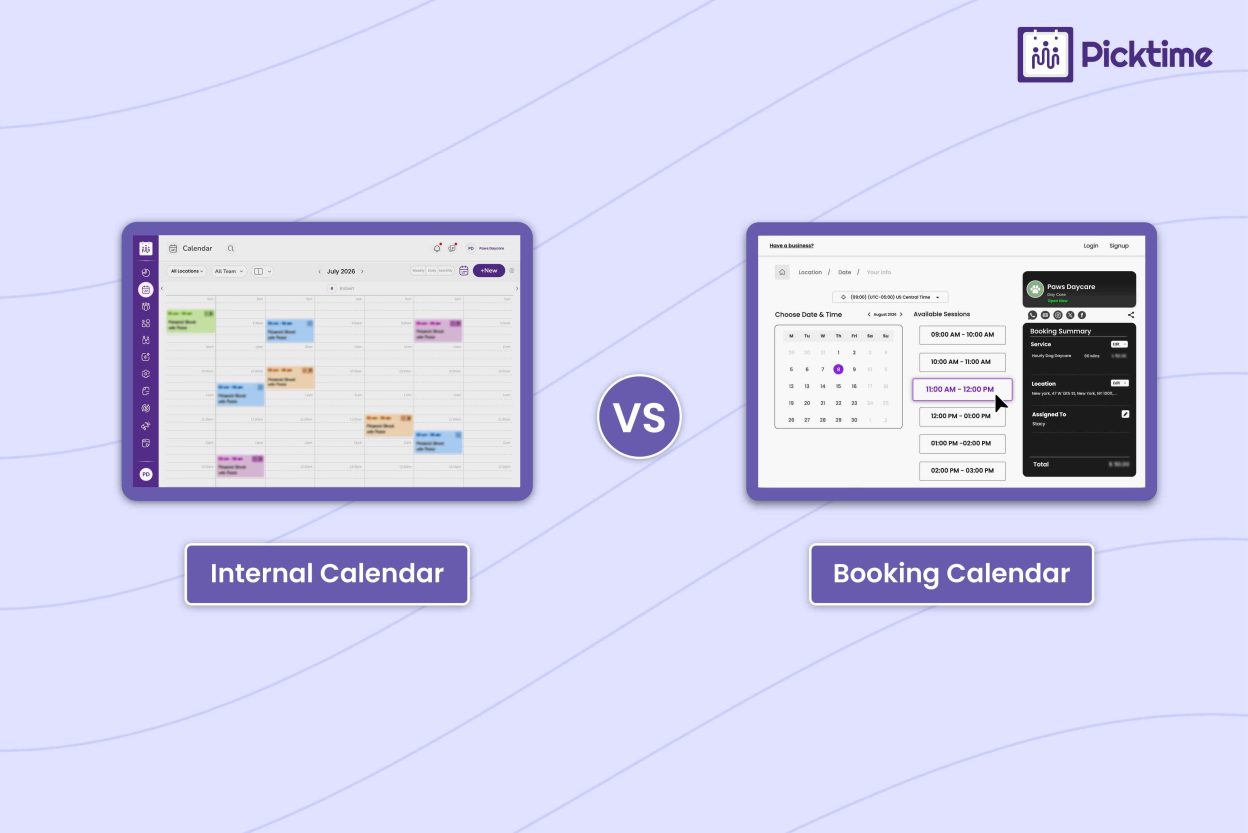
Most businesses have an internal calendar for managing the team and a customer booking calendar for allowing clients to choose a time. Both are useful, but they work in different ways.
This guide will help you know the difference between the internal and customer booking calendars. After continuing, you will also get to know about the scheduling problems and their fixes. By the end, you’ll have a clearer idea of how both calendars work and how keeping them in sync will benefit you.
Table of Contents
Scheduling Calendars: Internal vs. Customer Booking Calendar
Internal Calendar: For Your Team
- Purpose: Helps your team manage workloads, internal meetings, staff availability, and other business schedules.
- Who sees it: Only employees, managers, or specific team members can access it.
- Control: Staff or admins can add appointments, block time, update schedules, and manage internal resources.
- For example, you might use Google Calendar, Outlook, or an internal scheduling dashboard.
Customer Booking Calendar: For Your Clients
- Purpose: Let customers book appointments without contacting your team. In Picktime, customers can also reschedule or cancel their bookings when the relevant self-service settings or cancellation and reschedule links are enabled.
- Who sees it: Customers can open it through a shared booking link or directly from your website.
- Automation: Shows available times based on your schedule and can send booking confirmations and reminders.
- This is how customer booking works in tools like Picktime, Calendly, and Microsoft Bookings.
By now, you might be thinking, “So, which calendar should I use?” You don’t really have to choose one. Your internal calendar helps your team manage the full schedule, while the customer booking calendar gives clients a simple way to book available times. So, the best is to keep both calendars in sync. As a result, your customers only see times your team can actually take and provide the service.
Common Scheduling Problems When Calendars Don’t Match
- Double bookings: A team member adds a personal appointment, but the time still shows as available to customers.
- Ghost availability: A booking is removed, or a schedule changes, but the customer-facing calendar does not reflect the change. Thus, customers then see availability that does not match the real schedule.
- Different availability: One calendar shows a team member as unavailable, while the booking calendar still shows the time as open.
- Cross-calendar issues: Important commitments on another calendar can be missed if you only check one calendar.
- Manual tracking errors: Staff have to block the same personal events in multiple calendars, making it easy to miss an update.
- Delayed updates: A change in one calendar may take time to appear in another, leaving incorrect availability open.
How to Fix Mismatched Scheduling Calendars
The easiest way to avoid calendar mix-ups is to make sure your team’s schedule and booking page stay on the same page.
- Keep calendars in sync: Use two-way calendar sync so changes to busy times can update your booking availability.
- Check the calendars your team uses: Don’t rely on one calendar when important plans are spread across multiple calendars.
- Check the time zone: Make sure your calendar and booking page use the right time zone, especially when customers book from different locations.
How Calendar Sync Affects What Customers Can Book
One-way sync
With one-way calendar sync, information only moves in one direction. For example, new Picktime bookings can appear on your connected calendar, but events added there may not block availability in Picktime. So, this means customers could see a time as available even when you already have another commitment. This setup works if you mainly use the connected calendar to view your schedule, not to manage your availability.
Two-way sync
With two-way calendar sync, Picktime bookings can appear on the connected calendar, while busy events from the connected calendar can affect availability in Picktime. For example, if someone adds a busy event to their connected calendar, that time can be blocked from new customer bookings.
💡Tip: Picktime’s calendar scheduler supports both one-way and two-way calendar sync, depending on your connected calendar and plan.
Managing Internal and Customer Calendars in Picktime
Managing your internal calendar
Picktime’s Calendar gives your team an internal place to manage appointments and schedule changes. Team members’ working hours and breaks are configured separately under Team Members > Working Hours. Team members can have their own availability and access permissions, while admins can manage the wider team schedule.
You can also connect supported calendars such as Google Calendar, Outlook, Apple Calendar, Microsoft 365, and Microsoft Exchange. With supported two-way calendar sync, busy events from a connected calendar can be used to keep those times from appearing available for new customer bookings. You can also manually block time for team meetings, time off, or office closures when you need to keep a slot unavailable.
Managing Your Customer Booking Calendar
Your Picktime online booking page is the customer-facing side of your schedule. It shows customers the services, classes, or resources you make available online and the dates and times they can book. Unlike your internal calendar, customers only see the booking options and availability you make available to them. You can share it through a booking link or add it to your website, allowing customers to book appointments without contacting your team directly. You can control what customers can book by managing your team’s working hours and availability, setting booking windows, and choosing which services, classes, and resources are available for online booking. Adding buffer time between appointments can help you give space between continuous bookings.
When customers book, they see your available dates and times and enter the details you need, such as their contact information or other appointment details. This keeps the booking experience simple for customers while giving your team the information they need to manage each appointment.
Want to check both sides? Go to Calendar to review your team’s schedule, and go to Online Booking to open and review your customer-facing booking page.
Keep Your Internal and Customer Calendars Working Together
When scheduling an appointment, your team and customers don’t need to check the same calendar. Your team needs the full schedule, whereas your customers just want to know the available time so they can book. Well-managed scheduling calendars make it easier to set your work hours, availability, and breaks. With Picktime, you can manage your team’s schedule while giving customers a simple booking page that reflects the times you’re actually available.
After reading this, try checking your booking calendar from your customer’s point of view. Pick a service, check a few available times, and see whether your blocked hours and the right services or resources show up as expected. It’s an easy way to see whether your internal calendar and customer booking calendar are working together as they should.
Make sure your availability is clear before the next customer books. Sign up with Picktime today and keep it accurate.
FAQs
1. What’s the difference between an internal calendar and a customer booking calendar?
An internal calendar is where your team manages appointments, meetings, time off, and other schedule commitments. A customer booking calendar is the public-facing side, showing customers only the services and time slots they can book. In Picktime, your team can manage the internal schedule while customers use the booking page to choose an available time.
2. Why do customers sometimes see “free” times that are actually busy for my team?
This can happen when your internal calendar isn’t properly connected to your booking calendar. For example, if a team member adds a personal or work commitment to Google Calendar but that event isn’t reflected in the booking system, customers may still see the time as available. Picktime’s calendar sync can help account for busy events when supported two-way syncing is enabled.
3. How can I stop double bookings between my team calendar and booking page?
Connect the calendar your team actually uses and use two-way syncing where it’s supported. This allows busy events from the connected calendar to help block those times from new bookings, while bookings made through Picktime can appear on the connected calendar. It’s also important to keep team availability and schedules up to date.
4. What is one-way vs. two-way calendar sync, and which should I use?
- One-way sync sends calendar information in one direction. For example, Picktime bookings may appear on your connected calendar, but events added there may not update your Picktime availability.
- Two-way sync allows changes to move in both directions. A busy event added to the connected calendar can help block that time from new bookings, while new bookings can also appear on the connected calendar.
If your goal is to keep customer availability aligned with your team’s schedule, two-way sync is generally the better option when it’s available for your calendar and plan.
5. My team uses multiple calendars. Do I need to sync all of them?
You should connect the calendars that contain commitments that could affect when your team can take bookings. If important events are spread across different calendars and only one is connected, those other commitments may not be reflected in your booking availability. With Picktime, connect the calendars your team relies on so your booking availability has a more complete view of their schedules.